![H Logo Green PNG.png]](https://help.recordbase.co.nz/hs-fs/hubfs/H%20Logo%20Green%20PNG.png?height=50&name=H%20Logo%20Green%20PNG.png)
Before making a client file private
-
Required permission
-
To make a client file private and to view private client records, you must have the Private People management permission.
-
This permission is not assigned by default. To request access, your organisation will need to contact the Recordbase Support Team.
-
-
Privacy and governance considerations
-
Confirm with your organisation’s Privacy Officer or leadership team that restricting access is appropriate
-
Ensure the decision aligns with your organisation’s privacy policies and procedures
-
Be prepared to record a clear reason for audit and compliance purposes
-
-
Whitelist requirement
-
A client must be added to at least one user’s whitelist before they can be made private
-
It is strongly recommended to add at least two users to the whitelist to ensure ongoing access
-
If only one user is assigned to a private client and that user becomes unavailable (for example, leaving the organisation), access to the record may be lost. Always assign at least two authorised users.
Step 1: Add the client to a user’s whitelist
-
Go to Users and Roles
-
Click Users
-
Select the user who should have access to the private client
-
In the whitelist section:
-
Search for the client (person)
-
Enter a Start Date
-
Enter a Reason for access
-
Click Save
-
Repeat these steps for each user who needs access to this private client file.
For more information, see Manage Whitelists (Allowlist Access).
Step 2: Make the client private
-
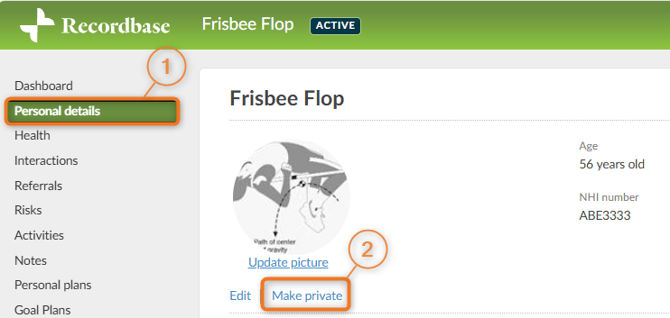
Navigate to the client's Personal Details page
-
Click Make private
What happens next?
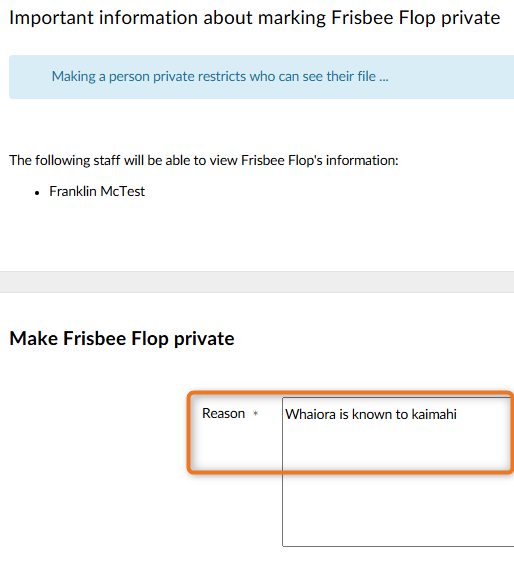
If the client is on at least one whitelist
- You will be prompted to confirm the action
- You must enter a reason for making the client private
If the client is not on a whitelist
- You will not be able to complete the action
- Add the client to a whitelist, then try again
Confirm the client is private
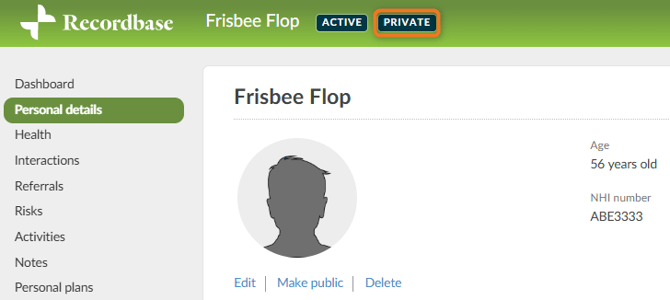
Once a client has been made private:
- A private badge will appear next to their name
- Only users listed on the whitelist can access the record
View all private client files
Users with the Private People management permission can view a list of all private client records in the organisation. This is useful for privacy oversight, auditing, or continuity of access.
To view all private client files:
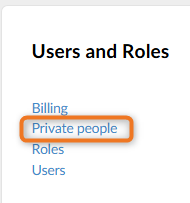
- Go to Users and Roles
- Select Private People
- The Private People screen displays a list of all clients currently marked as private

Only users with the Private People management permission can access this area.
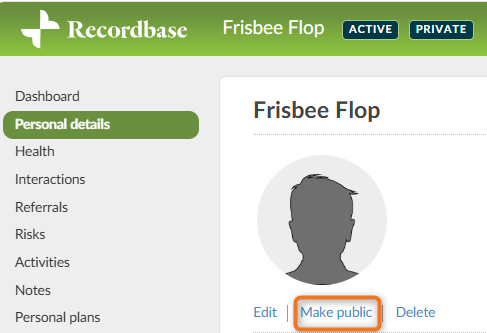
Make a private client public again
To restore access to all authorised users:
- Open the client’s record
- Go to Personal Details
- Click Make public
Best practices
-
Set up whitelist access before making a client private
-
Always assign at least two users
-
Provide clear and meaningful reasons for:
-
Whitelist access
-
Making a client private
-
-
Regularly review whitelist and private access to ensure it remains appropriate