![H Logo Green PNG.png]](https://help.recordbase.co.nz/hs-fs/hubfs/H%20Logo%20Green%20PNG.png?height=50&name=H%20Logo%20Green%20PNG.png)
This guide details all the steps required for you to enable single sign-on in Recordbase using your existing Microsoft account. If you have any questions about this or any of the details included, please get in touch with our support team.
Recordbase supports authentication using Entra ID (formerly known as Azure Active Directory). In Recordbase, we refer to this as “signing in with Microsoft”.
To set up the single sign-on (SSO), your organisational Entra ID and the Recordbase authentication service (Azure AD B2C) need to know about each other. Essentially, we have to tell your Entra ID that it can trust the Recordbase authentication service. We do this by means of an app registration.
App registration
An app registration is required to make sure Recordbase is trusted by your Entra ID. To make this simple, here is a link that will ensure the app registration process is managed correctly. This saves time and the risk of potential clerical errors.
Please note that this may result in a page displaying “The resource you are looking for has been removed, had its name changed, or is temporarily unavailable.” This is expected and will result in a successful registration.
1. Sign in with your credentials
After clicking the link, you will be asked to sign in. It is important that this is done by someone in the organisation who has a “Global Administrator” role.
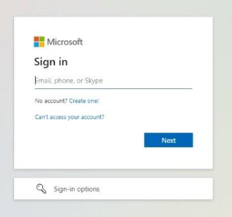
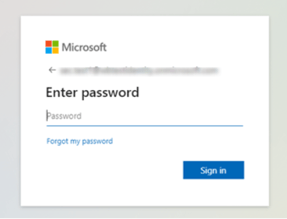
2. Allow permissions
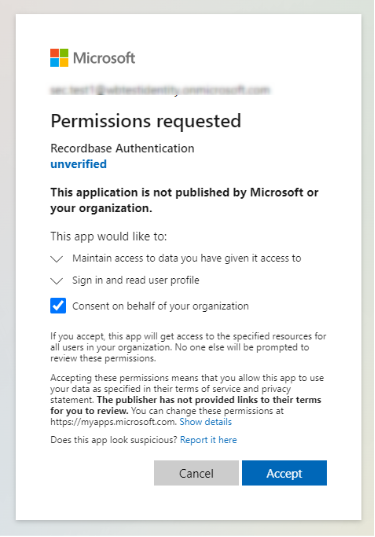
Now you will be presented with the dialogue requesting permissions. This is your Entra ID, making sure that you trust the Recordbase sign-on request.
You will need to select "Consent on behalf of your organisation" and then click "Accept".
Signing in with SSO
Once you have set up Microsoft SSO, you are nearly ready to go! For the final step, you will need to contact Wild Bamboo to ensure that all user accounts have been correctly configured in Recordbase.
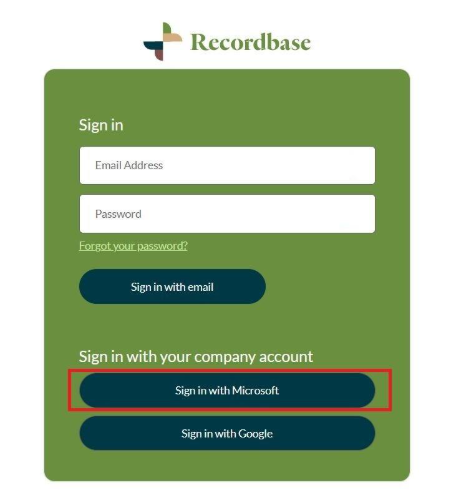
After receiving confirmation of the Recordbase user configuration, you no longer need to enter your email address (you can ignore the email and password prompts at the top of the screen), simply click the 'Sign in with Microsoft' button.
If you would like to know more about this, please contact us.