![H Logo Green PNG.png]](https://help.recordbase.co.nz/hs-fs/hubfs/H%20Logo%20Green%20PNG.png?height=50&name=H%20Logo%20Green%20PNG.png)
Step 1: Sign In to Recordbase
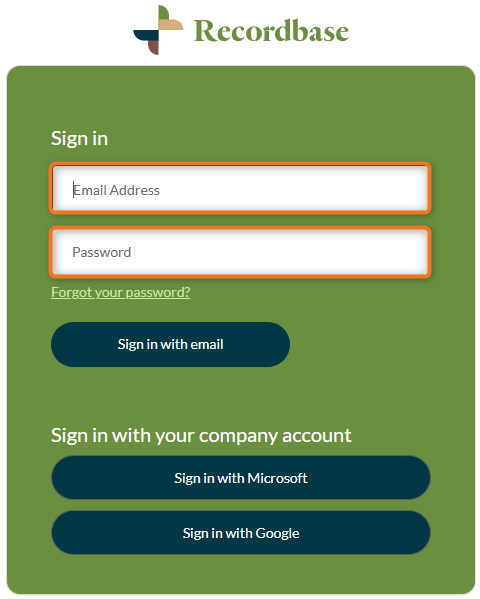
- Go to the Recordbase sign‑in page
- Enter your email address and password (or sign in using your normal method)
First Time Signing In with MFA?
If this is your first sign‑in after MFA was enabled, you’ll need to complete a quick one‑time setup before entering your code.
Follow the steps in the section below:
⇒ First‑Time Setup (One‑Time Only)
Step 2: Enter your MFA code
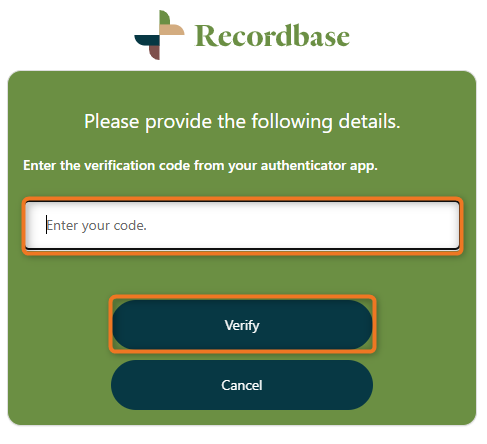
- Open your authenticator app
- Find your Recordbase account
- Enter the 6‑digit code
- Click Verify
First‑Time Setup (One‑Time Only)
You’ll only need to do this the first time you sign in after MFA is enabled.
What you’ll need:
- An authenticator app (recommended: Microsoft Authenticator)
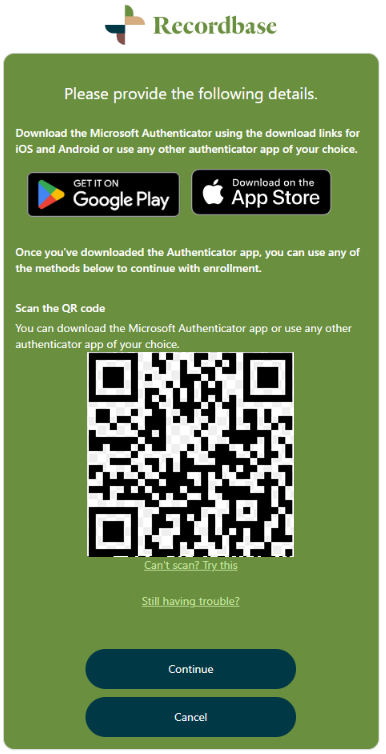
Note: This screen only appears during the initial MFA setup and will not be shown again once MFA has been configured.
The QR code shown below is for example purposes only and links to a Wikipedia page. When setting up MFA for your account, make sure to scan the QR code displayed on your Recordbase sign-in screen.
Authenticator Setup Steps
- Open your authenticator app
- Tap Add account (+)
- Select Scan QR code
- Scan the QR code shown in Recordbase
Once completed, setup is finished.
After Setup
From your next sign‑in onward:
- You will not need to scan a QR code again
- You will only need to enter the 6‑digit code