![H Logo Green PNG.png]](https://help.recordbase.co.nz/hs-fs/hubfs/H%20Logo%20Green%20PNG.png?height=50&name=H%20Logo%20Green%20PNG.png)
When Should You Reset MFA?
Reset MFA if a user:
- Has lost or replaced their phone
- Deleted or reinstalled their authenticator app
- Cannot generate valid codes
- Is unable to complete MFA setup
Steps to Reset MFA
-
Go to Users and Roles in Recordbase
-
Click Users
-
Search for the user in the list
-
Click the user’s name to open the Account Details screen
-
Select Reset MFA
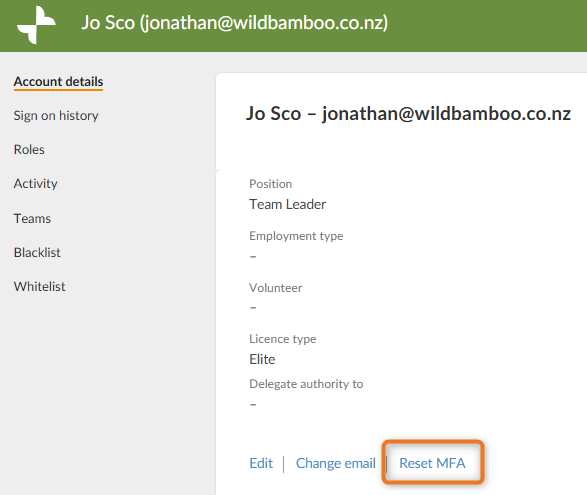
A message will appear confirming that MFA has been successfully reset.

What Happens Next?
After MFA is reset:
- The user’s next sign‑in will trigger the first‑time setup process again
- They will:
- Scan a new QR code
- Link their authenticator app
- Enter a verification code
After setup, they resume normal MFA sign‑in
Important Notes
- Resetting MFA does not disable MFA — it only clears the current setup
- The user must complete setup again before they can access Recordbase
- This is the primary recovery method for MFA‑related issues
Related MFA guides:
⇒ Signing in to Recordbase with Multi‑Factor Authentication (MFA)